
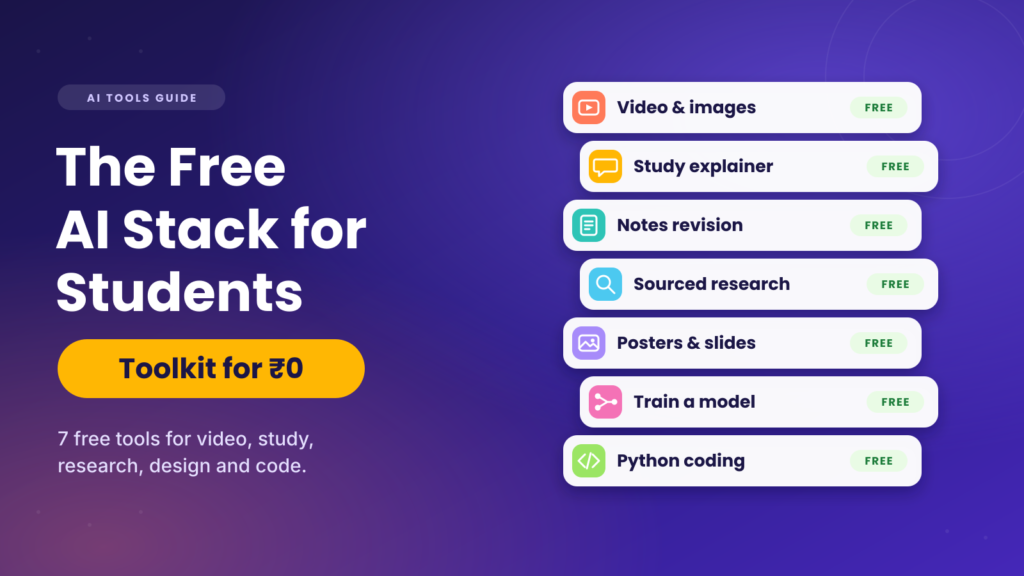
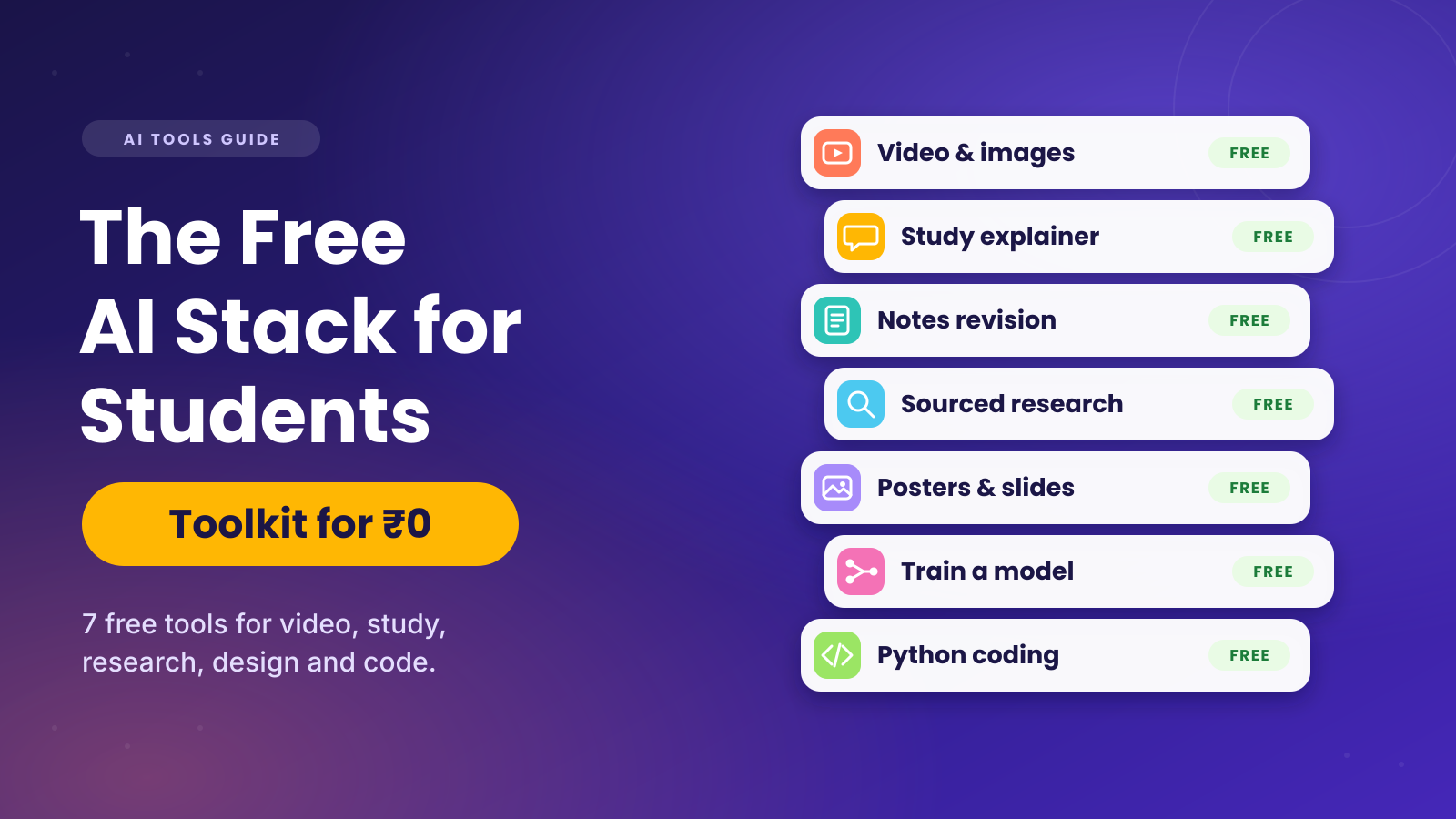
Most students assume a good AI toolkit costs money. It doesn't. A handful of free tools can cover studying, research, design, video and coding projects.
The catch is that every free plan has limits. Some cap daily use, some add watermarks, and a few change the rules without warning. Knowing this upfront saves you from surprises on deadline day.
This guide covers seven free tools, one for each job. For each, you will see what the free plan gives you, where it falls short, and who it suits. Pick one tool per task rather than collecting all seven.
The short version: seven free tools, one job each
Start with Magic Hour for video and images. Add ChatGPT for explanations, Gemini Notebook for your own notes, and Perplexity for sourced research. Use Canva for posters, Teachable Machine for AI projects, and Google Colab for Python.
Free plans change often. Check each pricing page before you rely on a tool for an exam project.
| Tool | Starting Price | Best For | Key Differentiator | Free Trial |
|---|---|---|---|---|
| Magic Hour | ₹0 (free credits) | Videos and images | Text and image to video in a browser | Core tools free, no card needed |
| ChatGPT | ₹0 | Explanations and practice questions | Study Mode and a familiar chat style | Permanent free plan |
| Gemini Notebook | ₹0 | Revising from your own notes | Answers drawn from your uploads | Permanent free plan |
| Perplexity | ₹0 | Sourced research | Citations on every answer | Permanent free plan |
| Canva | ₹0 | Posters and slides | Templates plus Magic Studio AI | Permanent free plan |
| Teachable Machine | ₹0 | Beginner AI projects | Train a model with no code | Always free |
| Google Colab | ₹0 | Python and data science | Code in a browser, nothing to install | Permanent free tier |
1. Magic Hour: Create videos and images without a camera
Magic Hour is a browser-based studio for AI video, images and audio. Type a prompt or upload a picture, and it builds a short clip for you. Its site lists more than 100 tools under one roof.
It earns the top spot because video is the hardest content to make without equipment. A student can turn a script into an explainer clip in minutes. That helps with science exhibitions, class presentations and revision videos.
What the free plan covers
You can try the core tools free, without adding a card. The site also mentions free daily credits. Text to video, image to video, a subtitle generator and an image generator all sit in the toolkit.
Its AI image editor removes objects and swaps backgrounds from simple text commands, which suits poster work.
Free image outputs are often watermark-free. Free video and audio may carry a watermark. For a school project that is usually fine, but a YouTube channel may need a paid plan.
Limits to know about
Free credits run out quickly, so plan short scenes rather than full lectures. Write your script first, then generate clip by clip. That wastes fewer credits.
The platform also offers face swap and voice cloning. Avoid both for schoolwork, and never use someone's face or voice without permission. If you are under 18, ask a parent or teacher before signing up.
Who should use it
Magic Hour suits Class 9–12 students making project videos, exhibition posters or revision clips. Teachers can use it for short explainers and captioned lessons. The company says over a million people use it monthly, though that figure is self-reported.
2. ChatGPT: Your free study explainer
ChatGPT is still the most familiar AI assistant. Ask it to explain a concept three different ways until one clicks. It can also draft quiz questions from your notes.
Treat it as a patient tutor, not an answer machine. Teachers want your reasoning, and reasoning is what earns marks.
What the free plan covers
The free plan is permanent and works in a browser or on a phone. It includes Study Mode, a guided option that asks you questions instead of handing over answers. Free accounts also get limited image generation, file uploads and voice chat.
Limits to know about
Free limits tighten at busy times, and the default model changes often. In some regions, free accounts also show ads. ChatGPT can sound confident while being wrong, so check facts against your textbook.
Who should use it
It suits anyone who needs concepts explained simply. Class 6–8 students can ask for everyday examples. Class 11–12 students can paste an error message and ask what went wrong.
3. Gemini Notebook (formerly NotebookLM): Study from your own notes
Google renamed NotebookLM to Gemini Notebook in July 2026, but many students still search the old name. The idea is simple. You upload your notes, and the AI answers using your material.
That makes it safer for revision than a general chatbot. Its answers stay tied to your chapters instead of wandering across the internet.
What the free plan covers
The free plan reportedly allows 100 notebooks, with up to 50 sources in each. It includes audio and video overviews, which turn your notes into a short podcast-style summary. Daily chat limits also apply, reported at around 50 chats a day.
Limits to know about
Usage limits now refresh every five hours, so heavy study days can hit a wall. Google says limits can change. The quality of answers depends on what you upload, so messy notes give messy results.
Who should use it
It is ideal for board exam revision. Upload a chapter PDF and ask for a summary, flashcards or likely questions. A free Google account is all you need.
4. Perplexity: Sourced answers for research projects
Perplexity works like a search engine that writes a short answer and shows its sources. That helps when a project requires you to say where facts came from. You can open each source and judge it yourself.
What the free plan covers
Basic searches are effectively unlimited on the free plan. Every answer shows citations, and focus modes such as Academic narrow results to scholarly material. You also get a few deeper Pro searches each day, with reported figures between three and five.
Limits to know about
The deeper searches run out fast, and file uploads are tight. Perplexity changes these numbers without much notice. Always open the cited page, because summaries can misread a source.
Who should use it
It suits Class 11–12 research projects, current-affairs notes and comparing viewpoints. Use it to find good sources, then read them yourself. Cite the original page, not Perplexity.
5. Canva: Posters, slides and infographics in minutes
Canva is the easiest design tool for non-designers. Pick a template, change the text and export. Its AI features, grouped as Magic Studio, add text-to-image and writing help.
What the free plan covers
The free plan offers thousands of templates, basic editing and about 5 GB of storage. A limited monthly allowance of AI credits is included. Verified school teachers and students can get Canva for Education at no cost, which unlocks Pro-level features.
Eligibility depends on your school and country. Ask your teacher before assuming you qualify.
Limits to know about
AI credits are metered, so heavy use ends quickly. Some premium images and tools stay locked on the free plan. Even the education plan restricts certain Magic Studio features.
Who should use it
Canva suits science exhibition posters, class presentations, infographics and project covers. Pair it with Magic Hour. Generate a clip or image there, then drop it into a Canva slide.
6. Teachable Machine: Train your own AI with no code
Teachable Machine is a free Google tool that trains a small AI model in your browser. Show it examples, label them and test the result live. It is the quickest way to feel how machine learning works.
What the free plan covers
There is no paid plan at all. You can build image, sound or pose classifiers without writing code, and you can start without an account. Your training examples stay on your device unless you choose to save the project to Google Drive.
You can also export a trained model and use it in a website or app. That step needs some coding.
Limits to know about
It only handles images, sounds and poses. The models are small, so accuracy depends on the quality of your samples. Poor lighting or too few examples will confuse it.
Who should use it
It is perfect for Class 9–10 students learning the AI project cycle. Try a rock-paper-scissors detector or a ripe-versus-unripe fruit classifier. Both make strong capstone ideas.
7. Google Colab: Free Python and data science
Google Colab runs Python in your browser, so you install nothing. It suits students learning coding, data science or machine learning. It is a lifesaver if your laptop is slow.
What the free plan covers
Free access includes Python notebooks, common libraries and your work saved to Google Drive. Limited GPU access is offered when capacity allows. Check the current terms, because availability shifts.
Limits to know about
Free sessions disconnect after inactivity, and GPU access is never guaranteed. Save your work often. Long training jobs may need to be restarted.
Who should use it
It fits Class 11–12 Python practice, data analysis with Pandas and capstone projects. Pair it with ChatGPT to decode error messages. You learn faster when the explanation arrives next to the error.
Common questions about free AI tools
Can I really build a full toolkit for ₹0?
Yes. Every tool here has a permanent free plan or free core tools. You will hit limits on heavy days, so spread your work across tools.
Which tool should I start with?
Start with the job in front of you. For a video or poster, try Magic Hour or Canva. For revision, try Gemini Notebook or ChatGPT.
Are free AI tools safe for school students?
Safety varies by tool. Many platforms set age rules, so read the terms and ask a parent or teacher. Never upload personal photos, ID documents or private details.
Will my school allow AI tools?
Policies differ by school. Ask your teacher what is allowed and how to disclose AI help. When in doubt, mention which tool you used.
How do I avoid wasting free credits?
Plan before you generate. Write your script, outline or prompt first, then run it once. Short, specific prompts waste fewer credits than vague ones.
The bottom line: build your stack in one weekend
Class 6–8 students should start small. Try Teachable Machine for a first AI experiment and Canva for a project poster. Add a chatbot only with a parent or teacher nearby.
Class 9–10 students can add Gemini Notebook for revision and Magic Hour for project videos. Use ChatGPT to quiz yourself before tests. Class 11–12 students should add Perplexity for research and Colab for Python.
Free tools work best when you stay in charge. You decide the question, check the answer and make the final product. Ready to put these tools to work? Explore the AI courses and practice sets on AIforKids, then pick one tool and build something this weekend.


