
When a science diagram has to move for a short explanation, a seedance 3 AI Video Generator is only useful if the labels on that diagram survive the motion. A sprouting seed drawn for a class worksheet already has the cup, the root, and the word labels in the right places. If the clip invents a second root or slides the word root onto the leaf, the class learns the wrong picture, and the still on the worksheet becomes the thing you wish you had kept on screen.

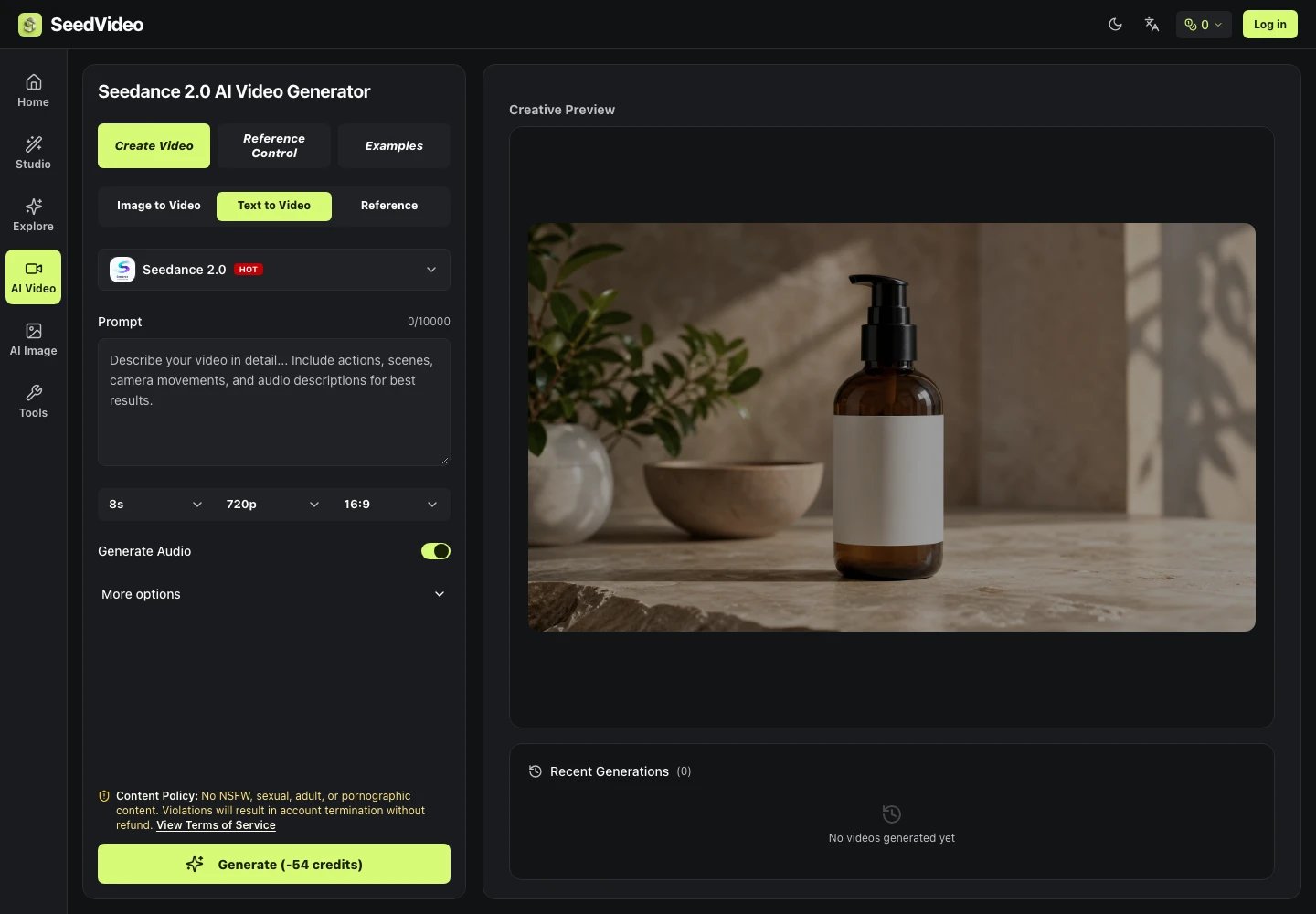
Mark the clip the way you mark a worksheet. SeedVideo is an independent studio, and the page is clear that Seedance models belong to ByteDance. On the video workbench you pick a mode, write a prompt, and set ratio and duration before you generate. For a lesson, the standard a teacher can mark is the labels: faces, clothing, and printed text are supposed to stay consistent, and the Seedance 3.0 line says the file comes back without a watermark. A steady style can still move the wrong arrow, so the watch-through is part of the period.
What A Class Clip Has To Show
A worksheet earns its place because a student can point at a part and say the name. Motion helps only when that pointing still works after the file plays. Seedance 3, as the studio describes it, takes image, video, audio, and text, and it is presented as a way to keep faces, clothing, text, scenes, and visual style steady from frame to frame. In a classroom the useful part of that list is the text and the diagram, not a face. If the cup, the soil line, and the printed word root stay put while one thing moves, the clip can sit beside the worksheet. If the word root lands on the shoot, the clip is wrong even when the camera move looks smooth.
Teachers already have two older ways to show growth, and both have a cost you can see. Redrawing the cup on the board loses the printed labels the worksheet spent a period getting right. Filming a hand over the paper hides those same words under a shadow. Neither method needs a model, and both still fail the pointing test. The new path is worth the period only if it beats those two failures, not if it merely looks more polished on a projector.
One action is easier to judge than a prompt that asks for rain, a time lapse, and a fresh set of labels. The published path says to describe the vision in ordinary language, then generate, extend, or edit. For this lesson the vision stays small: the seed coat splits and one root grows down. Set a short duration on the control and stop. Do not spend the period walking the whole duration menu. Pick a length a student can watch twice before the discussion, then look at the words.
Prepare The Still And The Spoken Line
Start from a still the class already marked as correct. Export the diagram before you open SeedVideo. The same studio also offers prompt-based photo edits, multi-image fusion, style transfer, and background removal, but a lesson about how a seed grows should not open by restyling the worksheet into a painting. The reference image is the worksheet itself, saved as a clear PNG, with the labels large enough to read at the size you will project.
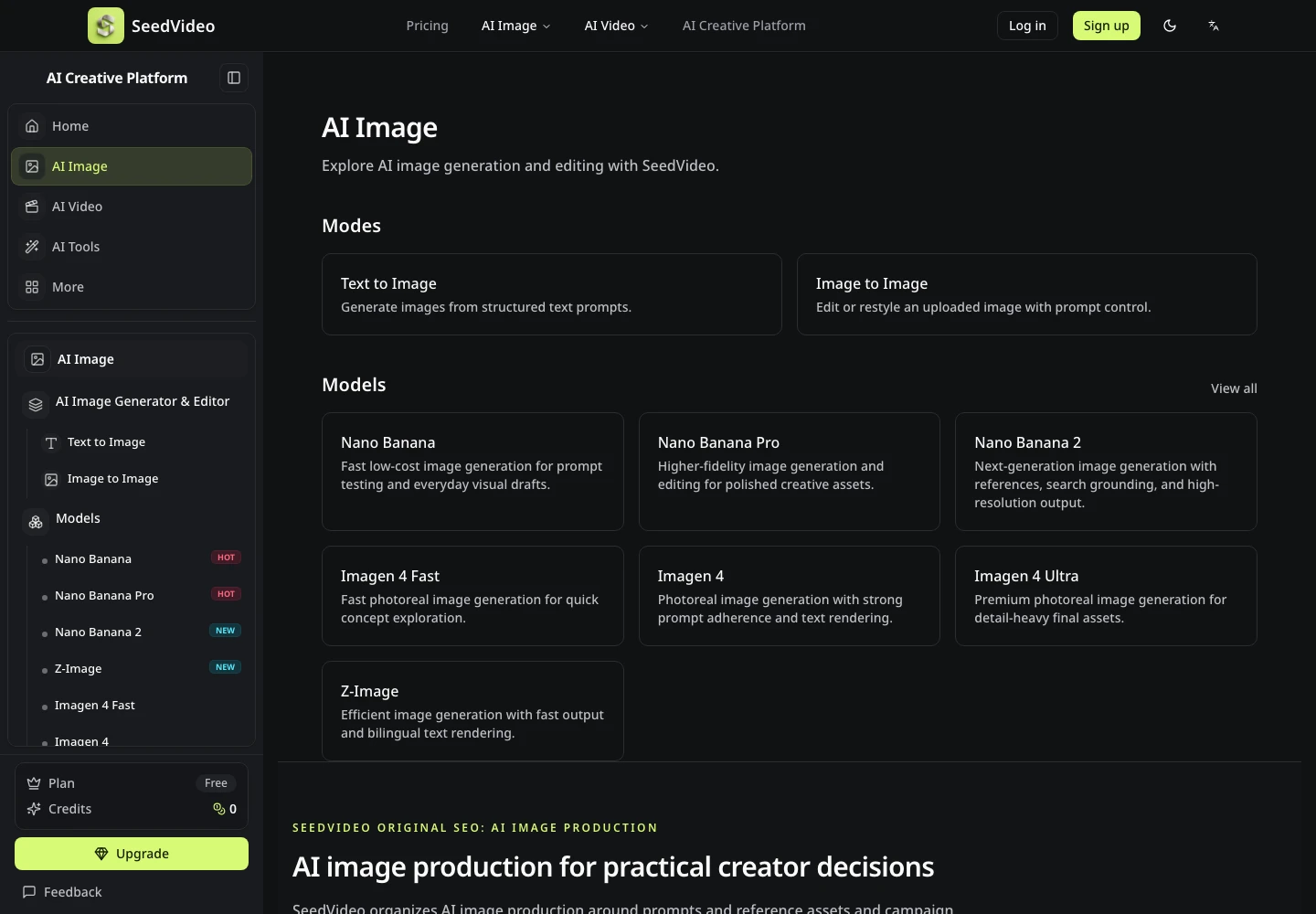
Lock One Diagram Students Already Know
Print or export the diagram before anyone opens a generator. Circle the one part that is allowed to move, and leave the words outside that circle. Students can help with the markup. That circle is the check you will use later: the marked part may change shape, and every word outside the circle must still match the worksheet. If the still is soft or cropped through a label, fix the still first. A soft source does not become a sharp label in the clip, and you will waste the hour arguing with a file that started unreadable.
Name The Motion In One Line
Write the motion as one sentence a substitute teacher could read aloud. Name the subject, the action, and what must not change. The sample prompt on the video page is a dog tidying laundry in warm window light, with a gentle camera move. Steal the shape of that sentence, not the dog. For the seed: the seed coat splits, one pale root grows downward into the soil, the cup and the printed labels stay still, no extra text, no lyrics. Put the camera instruction second. A slow push is enough. Two camera moves in one sentence fight each other, and you will not know which one moved a label.
Read the sentence back against the circle on the paper. If the sentence asks for a second event, cut it. A class can understand one change. A second change, such as rain entering the cup, gives you no clean way to say which instruction caused a wrong root. The prompt box on the page allows a very long entry, up to 20,000 characters. That limit is not an invitation. A short brief is the one you can grade.
Use The Workbench In Three Moves
The published path is short, and a class period is shorter. SeedVideo says to create an account, choose Seedance 3.0 in the AI video workbench, upload references, describe the vision, and generate. New accounts are offered trial credits. Whether those credits cover a video model is a pricing-page question, so read the quote on the generator before you promise the class a finished file. The three moves below are the ones the how-to section actually lists.
- Upload the worksheet image. Add a video or an audio file only when that file has one job the still cannot do. The page says you can use an image for the object, a video for camera movement, and audio for rhythm.
- Write the one-sentence scene in the prompt. Leave the ratio on a wide frame if the worksheet is wide, and set a short duration. Do not fill the prompt with extra moods.
- Generate, watch the whole clip, then extend or edit only the beat that failed. The download line says a Seedance 3.0 file from this studio is watermark-free. A clean frame is not the same thing as a correct label.
Watch with the sound off the first time, so the picture has to carry the science. Then play it once with sound if you added any. The point of the second pass is the words on the diagram, not the polish of the move. Pause where the root changes direction. If you cannot point at the same part the worksheet names, the take fails, and the class should see you reject it. That rejection is the lesson about the tool.
Tag References With The At Sign
When more than one file is attached, the prompt can tag a reference with @ and say what that file is for. The page tells you to state which reference guides consistency, which one guides motion, and what should stay fixed. With a single worksheet you may not need the mark at all. Use it when a second file has a separate job, for example a short clip of water being poured that should teach the camera, while the worksheet teaches the labels. Say that split in the sentence. If you skip the split, nothing on the page tells the model which file wins, and the labels are the usual loss.
That is the practical use of a seedance 3 AI Video Generator in one period: one still the class already trusts, one motion, one watch-through for the words. The same page also describes extension and targeted edits, such as changing an action while leaving the rest of the picture. For a diagram, treat an edit as a repair of one wrong beat, not as a chance to add a second process. If the root grows up instead of down, fix that action or start again from the same still. Do not stack a rainstorm on the mistake.
A teacher who spends the period swapping adjectives has spent the hour on the prompt instead of on the root direction. The rework shows up as three files that all miss the same arrow, and the bell does not give that hour back. Stop after the second failed take and return to the worksheet. The still was already good enough to teach.
Classroom Clips Still Need A Human Check
Two boundaries sit on the public pages. The free plan lists 10 credits and image models such as Nano Banana, Imagen 4 Fast, and Z-Image, while Seedance video access is written into the paid plans, so a class cannot assume the trial balance buys a video. The content rule also bans sexual material and says a violation can close the account without a refund. Neither line checks your science labels. You still watch the root and the words, and you discard a take that teaches the wrong direction.
Keep The Clip Inside The Lesson
SeedVideo fits a teacher who already has a correct diagram and needs one short motion, with time left to reject a bad take. It is a poor fit when the class still needs the diagram drawn, or when the lesson is a chain of several processes that will not fit one action. Keep the worksheet on the board either way. The clip is an extra view of a picture the students can already name.
If the labels hold and the root grows the way the worksheet says, play the file once and go back to the pointing exercise. If they do not, the honest close is the paper. Students learn more from seeing a wrong root rejected than from watching a smooth clip that renamed their diagram.